Free Video Editing Software for Mac: 7 Options Compared
Free video editing software for Mac compared: DaVinci Resolve, iMovie, Shotcut and four more, with export limits, watermarks and Mac requirements.
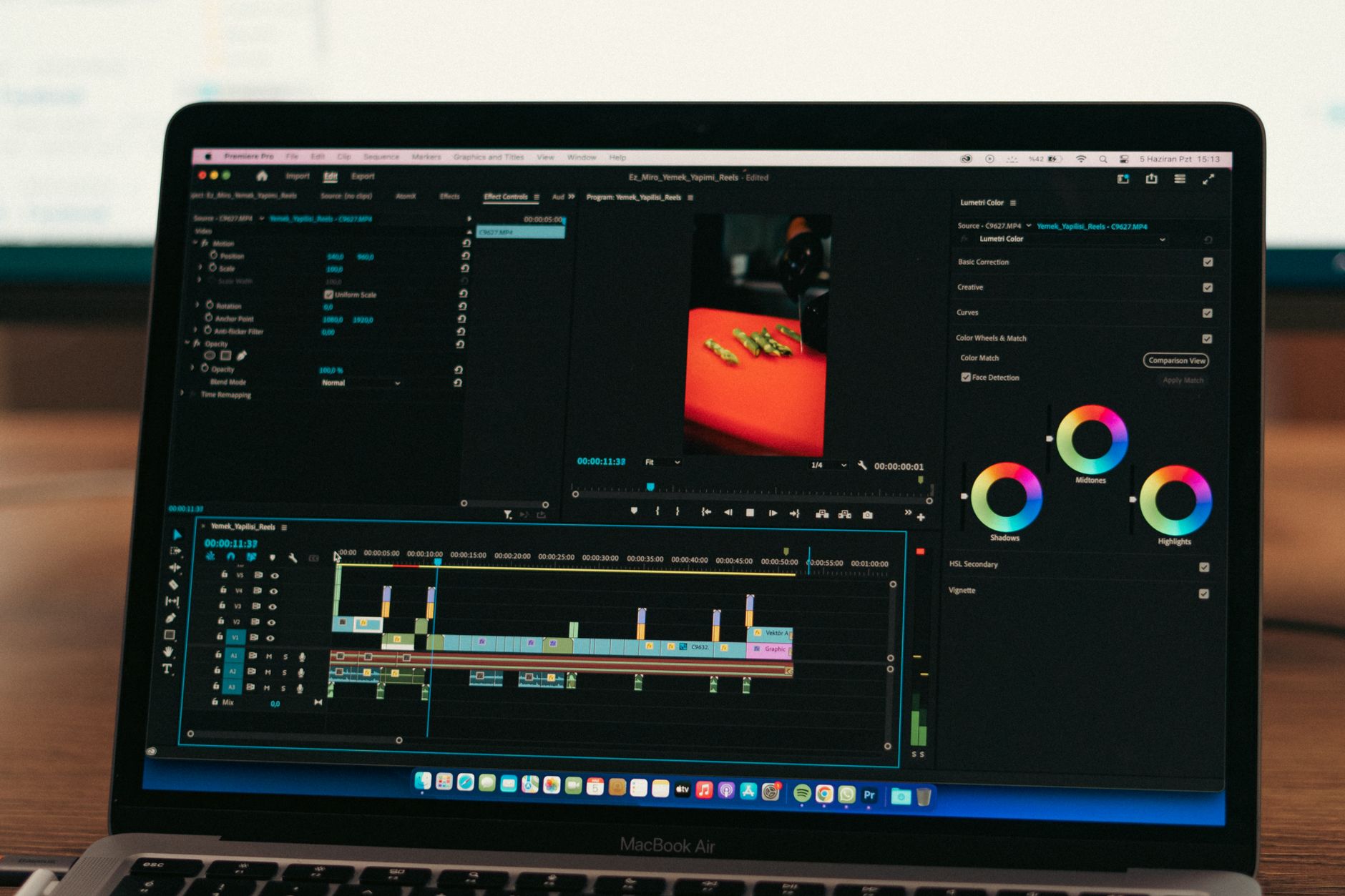
Choosing free video editing software for a Mac is the decision that comes straight after you have recorded something. My own channel is mostly voice-led: screen recordings, desk and product b-roll, and my voiceover laid over the top. That kind of video lives or dies in the edit, so the editor matters more than most of the kit.
This is a research guide, not a hands-on test. I have compared what each free editor's maker publishes about its limits (export resolution, watermarks, Mac requirements) and set out which I would pick for which kind of channel. Every limit below is linked to the maker's own page, checked in November 2026.
Which free Mac video editor should you pick?
Three questions narrow the field quickly:
- Which Mac do you have? An Apple silicon Mac (an M1 or later chip) runs every editor here at its newest version. An older Intel Mac rules out the latest DaVinci Resolve and the newest iMovie.
- What resolution will you upload? If you only ever publish 1080p, a 1080p export cap costs you nothing. If you film in 4K, skip the editors that cap free exports at 1080p.
- How much time will you give the learning curve? iMovie takes an afternoon. DaVinci Resolve takes weeks to feel at home in, and repays them for years.
How do the seven free editors compare?
DaVinci Resolve
Free export: Ultra HD, 60fps, 8-bit. Watermark: None. Runs on Mac, Windows, Linux. Best for: long-term, serious editing.
iMovie
Free export: 4K. Watermark: None. Runs on Mac, iPhone, iPad. Best for: fast, simple edits.
Shotcut
Free export: 4K. Watermark: None. Runs on Mac, Windows, Linux. Best for: open source, any format.
OpenShot
Free export: No project limits. Watermark: None. Runs on Mac, Windows, Linux. Best for: beginners on older macs.
Lightworks Free
Free export: 1080p. Watermark: None. Runs on Mac, Windows, Linux. Best for: learning a pro-style editor.
CapCut
Free export: Free tier, some features Pro-only. Watermark: Depends on features used. Runs on Mac (10.14+), Windows. Best for: short-form vertical video.
Clipchamp
Free export: 1080p. Watermark: None. Runs on Web browser on Mac. Best for: edits with no install.
MAC · WINDOWS · LINUX
DaVinci Resolve
The strongest free editor on the Mac, with a steep learning curve
- Long-form YouTube
- Colour grading
- Growing into a pro tool
- Free export Up to 3840x2160
- Frame rate Up to 60fps
- Newest version Apple silicon, macOS 15+
- Paid upgrade Studio, one-off
DaVinci Resolve (Blackmagic Design's editing, colour, audio and effects application) is the free editor I would choose for a YouTube channel. Blackmagic's product page states that the free version handles 8-bit formats at up to 60fps in resolutions up to Ultra HD (the 3840x2160 resolution YouTube labels 4K), with no watermark. That covers almost every YouTube upload.
The free version also includes Fairlight, Resolve's built-in audio page, which matters for a voice-led channel: you can clean up and level a voiceover without leaving the editor. The paid DaVinci Resolve Studio adds the DaVinci AI Neural Engine tools (magic mask, AI noise reduction, text-based editing) and 10-bit footage up to 120fps. Blackmagic sells Studio as a one-off licence rather than a subscription.
Check your Mac first. According to the DaVinci Resolve Club's 2026 requirements guide, Resolve 21.1 needs an Apple silicon Mac on macOS 15 Sequoia or later, with 8 GB of RAM (16 GB if you use the Fusion effects page). Intel Macs stop at Resolve 20.3.2, and a project opened in 21.1 will not reopen in 20.3.2, so keep everything on one version.
Strengths
- Ultra HD export at 60fps with no watermark
- Pro-grade colour, audio and effects in one app
- Studio is a one-off upgrade, not a subscription
Limits
- Steepest learning curve here
- Newest version is Apple silicon only
- AI tools sit in the paid Studio version
MAC · IPHONE · IPAD
iMovie
Apple's own free editor, already on most Macs
- First videos
- Quick social edits
- Phone footage from an iPhone
- Export Up to 4K
- Platform Apple devices only
- Disk space 3.5 GB
- Price Free
iMovie (Apple's free consumer video editor) is the quickest route from footage to a finished video. The Mac App Store listing shows version 10.4.5, 4K editing, 29 trailer templates, and green screen, picture-in-picture and side-by-side effects. It needs 4 GB of RAM and 3.5 GB of disk space.
Its best trick for a growing channel is the hand-off: an iMovie project can be sent to Final Cut Pro (Apple's paid professional editor) if you outgrow it, so nothing you start is wasted. The 10.4.5 update also added editing of Cinematic mode clips recorded in Final Cut Camera, Apple's capture app for iPhone.
The limits are about control rather than quality: the timeline, audio tools and export settings are deliberately simple. For talking-head clips or a short tutorial, none of that matters. The current version needs a recent macOS release, so check the App Store's compatibility line before relying on it on an older Mac.
Strengths
- Free, no watermark, nothing to install on most Macs
- Very short learning curve
- Projects move up to Final Cut Pro
Limits
- Limited track and audio control
- Mac and Apple devices only
- Newest version needs a recent macOS
OPEN SOURCE · CROSS-PLATFORM
Shotcut
A free, open-source editor that opens almost any file
- Mixed camera formats
- Open-source fans
- Intel and Apple silicon Macs
- Export Up to 4K
- Formats Hundreds, via FFmpeg
- Licence Open source
- Price Free
Shotcut (a free, open-source, cross-platform editor) edits footage natively, so there is no import or transcode step before you start cutting. Shotcut's site lists support for hundreds of audio and video formats through FFmpeg (the open-source media library behind many video tools) and resolutions up to 4K.
Version 26.9 added Auto Duck, which lowers music automatically under speech, and Adjustment Clip, which applies one effect across every clip beneath it. Auto Duck in particular suits a voiceover channel, where background music has to sit under the narration.
The interface is more utilitarian than iMovie's, with panels you open as you need them. Expect an evening of tutorials before it feels natural.
Strengths
- Opens almost any camera or phone file natively
- Up to 4K, no watermark, no account
- Auto Duck suits voiceover-led videos
Limits
- Plainer, panel-heavy interface
- Fewer polished templates and titles
OPEN SOURCE · CROSS-PLATFORM
OpenShot
A gentle open-source editor with no limits on projects
- Beginners
- Simple tutorials
- Older Macs
- Licence GPLv3
- Watermark None
- Colour Wheels, curves, LUTs
- Price Free
OpenShot (a free video editor released under the GPLv3 open-source licence) is the friendliest of the open-source options. OpenShot's site states there are no subscriptions, watermarks or project limits, and version 4.1.1 runs on the Mac.
The feature list is longer than its reputation suggests: colour wheels, curves, LUTs (preset colour looks you apply in one step), video scopes, chroma key for green screen, interactive masks and keyframes. That is enough for a tidy tutorial or product video.
It is the one I would point someone at who finds iMovie too limited and Resolve too much, especially on an Intel Mac that cannot run the newest Resolve.
Strengths
- No watermarks, subscriptions or project limits
- Simple layout for a first editor
- Colour tools and chroma key included
Limits
- Less powerful than Resolve for long projects
- Smaller tutorial library than the big names
FREEMIUM · CROSS-PLATFORM
Lightworks Free
A professional editor's workflow, capped at 1080p
- Learning pro editing
- 1080p uploads
- Film-style workflows
- Free export Up to 1080p
- Watermark None
- Upload presets YouTube, Vimeo
- Paid tiers Create 4K, Pro 8K
Lightworks (a long-running professional editor from LWKS) has a free tier, Lightworks Free (the no-cost plan of the same editor), that exports up to 1080p, according to its pricing page. Create raises that to 4K and Pro to 8K. The same page states files carry no overlays or watermarks, and the free plan includes YouTube and Vimeo upload presets.
The 1080p cap is the deciding factor. If you film and publish in Full HD, Lightworks Free gives you a professional editing model at no cost. If you film in 4K, Resolve or Shotcut export it free, which makes them the better starting point.
Strengths
- No watermark on free exports
- YouTube and Vimeo presets built in
- Professional-style trimming tools
Limits
- Free exports capped at 1080p
- 4K needs a paid tier
FREEMIUM · MAC APP
CapCut
Built for short-form video, with paid features mixed in
- Shorts, Reels and TikTok
- Auto captions
- Templates
- Mac requirement macOS 10.14 or later
- Pro monthly £21.99
- Pro yearly £199.99
- Focus Vertical video
CapCut (ByteDance's video editor, widely used for TikTok) has a free desktop app for macOS 10.14 or later, per its desktop editor page. Its pricing page puts Pro at £21.99 a month or £199.99 a year at the time of writing, and that tier carries the AI features and premium templates.
The trouble with CapCut as a free editor is the mix: Pro features and templates sit alongside free ones in the same menus, so it is easy to build an edit that then asks you to upgrade before export. Primal Video left it out of its free editor round-up for that reason. Use it for vertical Shorts if you like its captions and templates, but check what is free before you build a long edit around it.
Strengths
- Strong for vertical, captioned short-form video
- Runs on older macOS versions
Limits
- Pro features mixed in with free ones
- Pro costs £21.99 a month at the time of writing
BROWSER · NO INSTALL
Clipchamp
Microsoft's browser editor, with free 1080p exports
- Quick edits
- Shared or borrowed Macs
- No install
- Runs in Web browser
- Free export Up to 1080p
- Watermark None
- Needs Microsoft account
Clipchamp (Microsoft's online video editor) runs in a web browser on a Mac, so there is nothing to install. Its pricing page states that free exports go up to 1080p with no watermark, and you sign in with a personal Microsoft account. 4K export is a premium feature included with Microsoft 365 Personal and Family plans.
It suits a quick edit on a Mac you cannot install software on. For a regular channel, a desktop editor handles long projects and large files better than a browser tab.
Strengths
- Nothing to install
- Free 1080p exports with no watermark
Limits
- Needs a Microsoft account and a connection
- 4K export is a paid feature
Is DaVinci Resolve really free on a Mac?
Yes. The free DaVinci Resolve is a full editor, not a trial: no watermark and no time limit. Blackmagic sells DaVinci Resolve Studio and its own cameras and editing hardware alongside it, and the free version is deliberately generous.
What you give up is the top tier of features: 10-bit footage, frame rates above 60fps, resolutions beyond Ultra HD and the DaVinci AI Neural Engine tools. For a beginner channel filming 8-bit footage on a phone or an entry-level camera, none of those limits will bite for a long time.
Which editor suits a voice-led YouTube channel?
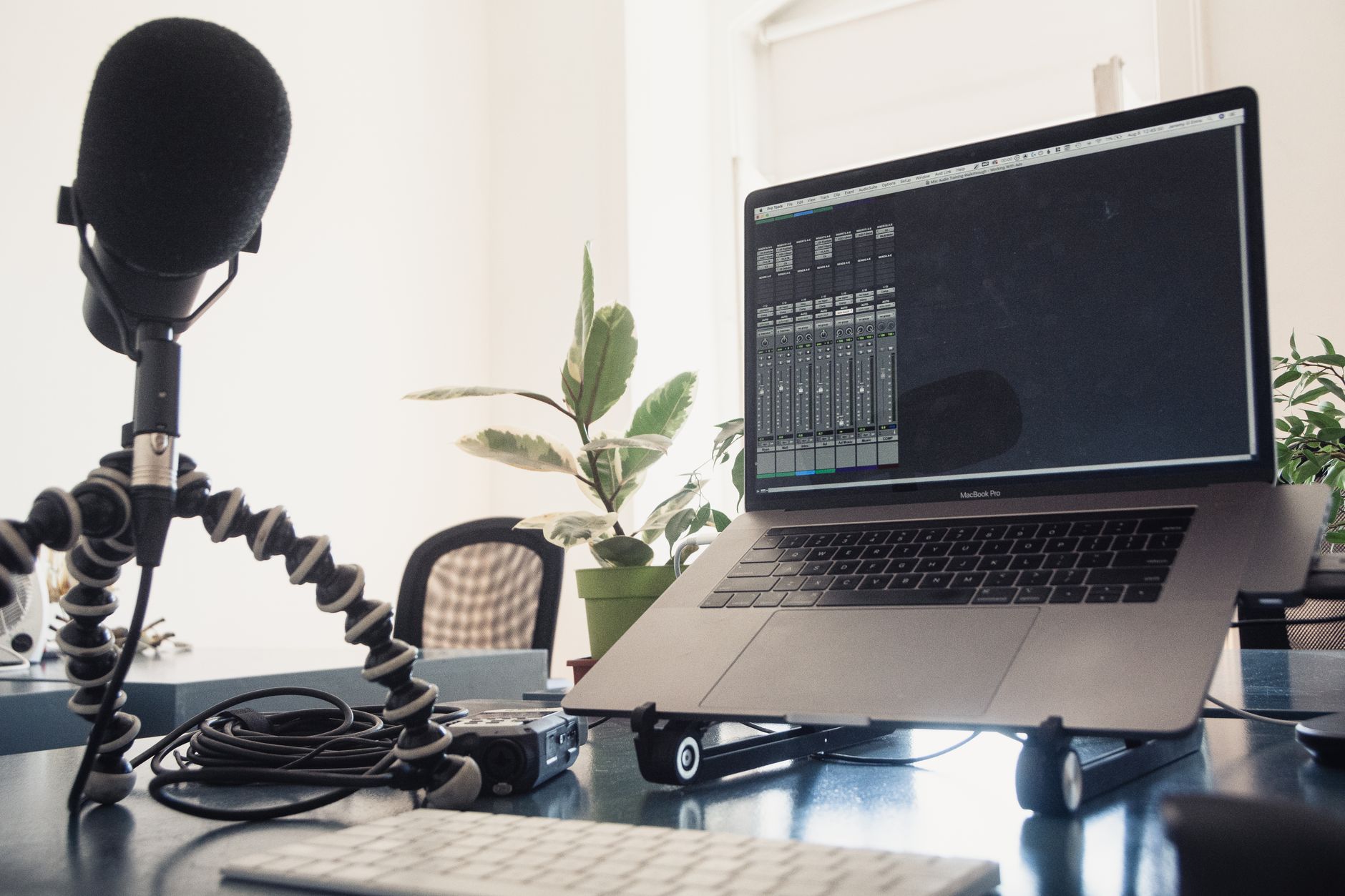
A voice-led channel (screen recordings and b-roll with narration, rather than a face on camera) leans on two things in the edit: clean audio and accurate cutting to the voiceover. That is why I would start with DaVinci Resolve. The Fairlight audio page handles levels, noise and EQ in the same project, so the voice and the picture never leave one app.
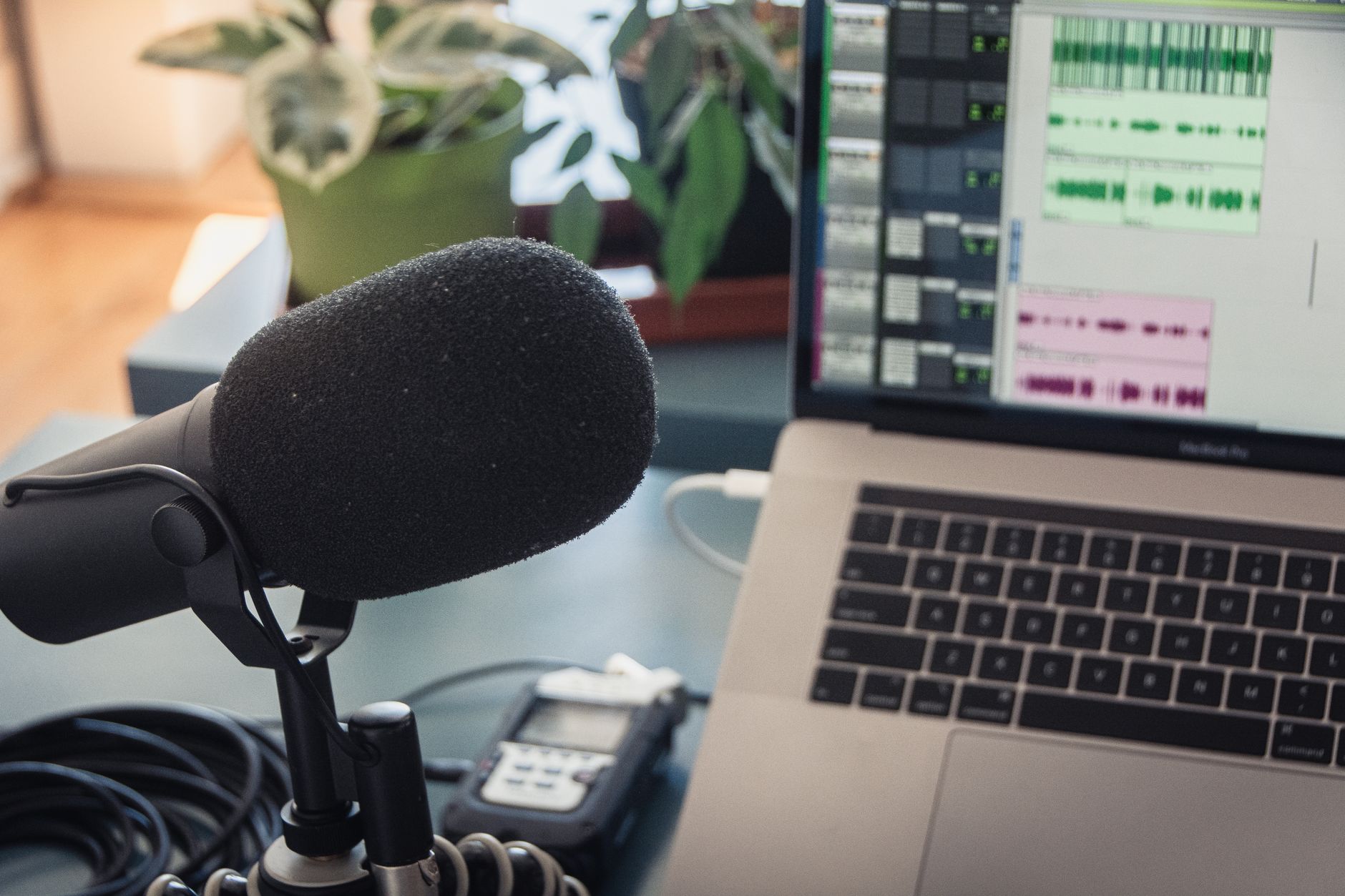
If Resolve is too heavy for your Mac, Shotcut is the next choice, because Auto Duck keeps music under the narration without hand-drawn volume curves. Record the narration well first: how to record voiceover at home covers the room and mic side, and screen recording on a Mac with audio covers capture.
Can an older Intel Mac run free video editing software?
Yes, with fewer choices at the newest versions. An Intel Mac can run DaVinci Resolve up to 20.3.2 on macOS 14 or later with a Metal-capable graphics card, according to the DaVinci Resolve Club guide. Shotcut and OpenShot are both built for a wide range of Macs, and Clipchamp needs only a browser.
Editing 4K footage is the real strain on an older machine. If playback stutters, edit in 1080p and export at the resolution you filmed, or use the proxy (lightweight stand-in file) options most of these editors offer.
What does a free editor leave out?
Across the seven, the paid upgrades follow a pattern. Free tiers cap the export resolution (Lightworks and Clipchamp at 1080p), hold back AI tools (Resolve Studio, CapCut Pro) or lock premium templates and stock media. None of the seven here stamps a watermark on a basic free export, which was once the main catch with free editors.
For a new channel, that means the software is no longer the reason to spend money. The budget is better spent on a microphone and a light, which do more for how a video looks and sounds than any paid editor.
Which free editor would I choose?
For most new YouTube channels on an Apple silicon Mac, DaVinci Resolve: it exports Ultra HD free, handles voice and picture in one project, and there is nothing to outgrow. If you want your first video out this week, start in iMovie and move up once its limits get in the way. On an Intel Mac, OpenShot or Shotcut keeps you on a current, supported version.
Frequently asked questions
What is the best free video editing software for Mac?
Is there a free video editor for Mac with no watermark?
Does iMovie come free with a Mac?
Can I run DaVinci Resolve on an Intel Mac?
Is CapCut free on Mac?
Sources
How to screen record on Mac with audio
Faceless YouTube channel setup

How to record voiceover at home